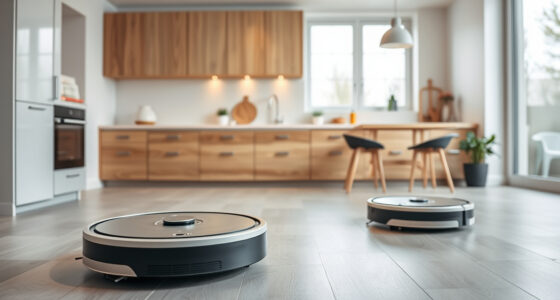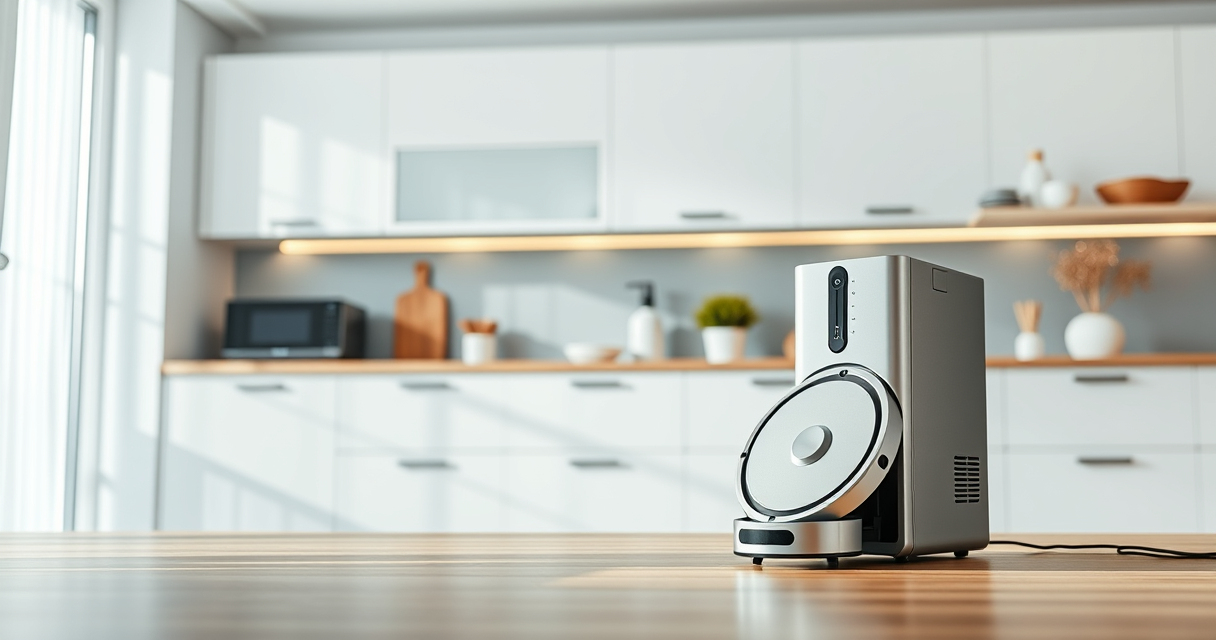
If your Roborock Q7 M5+ Robot Vacuum is not connecting to WiFi, it can be frustrating and hinder your cleaning routine. This guide provides clear, practical steps to diagnose and fix WiFi connection issues safely and effectively, ensuring your robot stays connected and functional.

Get cleaning gear delivered free with Prime
- Fast, free delivery on millions of items
- Prime Video, Amazon Music and more included
- Member-only deals all year
Before proceeding, make sure your WiFi network is operational, and your smartphone is connected to the same network you want your vacuum to join.
Key Takeaways
| Check WiFi Compatibility | Ensure your WiFi network meets Roborock’s requirements. |
| Restart Devices | Power cycle your router and robot for a fresh connection. |
| Update Firmware | Keep your Roborock app and device firmware current. |
| Reset WiFi Settings | Reconfigure WiFi on your robot if persistent issues occur. |
Step 1: Verify Your WiFi Network
- Ensure your WiFi network is 2.4 GHz, as Roborock devices typically do not support 5 GHz networks.
- Check that your router is working properly and that other devices can connect without issues.
- Make sure your WiFi password is correct and updated in your network settings.
Step 2: Restart Your Devices
- Turn off your Roborock vacuum and unplug your router.
- Wait for 30 seconds, then power on your router and wait until it’s fully operational.
- Turn your Roborock vacuum back on and try reconnecting via the app.
Step 3: Use the Roborock App to Reconnect
- Open the Roborock app and go to your device settings.
- Select ‘WiFi Setup’ and follow the on-screen instructions, ensuring your phone stays connected to the correct WiFi network.
- Keep your phone close to the robot during setup to ensure a strong connection.
Step 4: Reset WiFi Settings on the Robot
- Press and hold the power button on your vacuum for about 5 seconds until it resets WiFi settings (refer to your manual for exact steps).
- Then, go through the app’s WiFi setup process again.
Tips and Warnings
- Ensure your phone’s Bluetooth and location services are enabled for initial setup.
- Avoid using 5 GHz networks during WiFi setup, as compatibility issues may occur.
- Keep your firmware and app updated to prevent bugs that could affect connectivity.
- If problems persist, contact Roborock support for assistance.
The Products in This Guide

roborock Q7 M5+ Robot Vacuum and Mop
- ✔ Weight: 7.5 kg
- ✔ Dimension: 350 x 350 x 96 mm
- ✔ Charging Time: Approx. 6 hours

4 Pack Washable Filter
- ✔ Material: HEPA
- ✔ Fitment: Multiple Roborock models
- ✔ Pack Size: 4 filters
roborock Q7 M5+ Robot Vacuum and Mop
The Roborock Q7 M5+ Robot Vacuum and Mop offers powerful suction, smart navigation, and a self-emptying feature, making it an excellent choice for pet owners and busy households.
Pros:
- Up to 7-9 weeks of hands-free cleaning
- 10000Pa suction for deep cleaning
- Advanced PreciSense LiDAR navigation
- Self-emptying dock reduces maintenance
Cons:
- Premium price point
- Requires WiFi for full functionality
- Setup can be tricky for beginners
Best for: Pet owners and large households seeking a reliable, automated cleaning solution
Not ideal for: Users without a stable 2.4 GHz WiFi network or those preferring manual control
Bottom line: A smart, powerful robot vacuum ideal for pet-friendly, large homes with WiFi connectivity.
4 Pack Washable Filter
The 4 Pack Washable Filter for Roborock ensures your vacuum maintains optimal suction and filtration, prolonging its lifespan and reducing replacement costs.
Pros:
- Reusable and washable
- Compatible with multiple models
- Easy to install
- HEPA filtration quality
Cons:
- Requires regular cleaning
- Not OEM, but high quality
Best for: Maintaining peak vacuum performance and air quality
Not ideal for: Users seeking OEM parts or specialized filters
Bottom line: A cost-effective, high-quality washable filter to keep your Roborock operating at its best.
Frequently Asked Questions
Why won’t my Roborock connect to WiFi?
Common reasons include incompatible network types, weak signal, outdated firmware, or incorrect WiFi password. Follow the troubleshooting steps to resolve these issues.
Can I connect my Roborock to a 5 GHz WiFi network?
Most Roborock models, including the Q7 M5+, work best with 2.4 GHz networks. Using a 5 GHz network can prevent successful connection.
How do I reset my Roborock’s WiFi?
Press and hold the power button for about 5 seconds (check your model’s manual) to reset WiFi settings, then reconfigure via the app.
What should I do if the robot still won’t connect after trying these steps?
Ensure your app and device firmware are up to date, restart your devices, and consider resetting your network settings or contacting Roborock support.
Stay Connected for Effortless Cleaning
WiFi connectivity issues with your Roborock Q7 M5+ can be resolved with a few straightforward steps. Ensuring your network compatibility, restarting your devices, and properly configuring via the app usually fixes most problems. If issues persist, reaching out to support or performing a factory reset can help restore full functionality. Keeping your firmware and app updated is key to a smooth experience, allowing you to enjoy a clean home with minimal hassle.
Affiliate disclosure: As an Amazon Associate we earn from qualifying purchases. Prices and availability are accurate as of the time of publishing.
Fall Picks
fall essentials
As an affiliate, we earn on qualifying purchases.